Lattuce tutorial · Notes & Library
Link two notes together
Connect Notes with wikilinks, typed relationships, backlinks, graph context, and broken-link recovery.
Wikilinks are the smallest useful unit of Notes navigation: they let a future reader move from a claim to its context without remembering folders or exact URLs. Link durable concepts, not every passing mention.
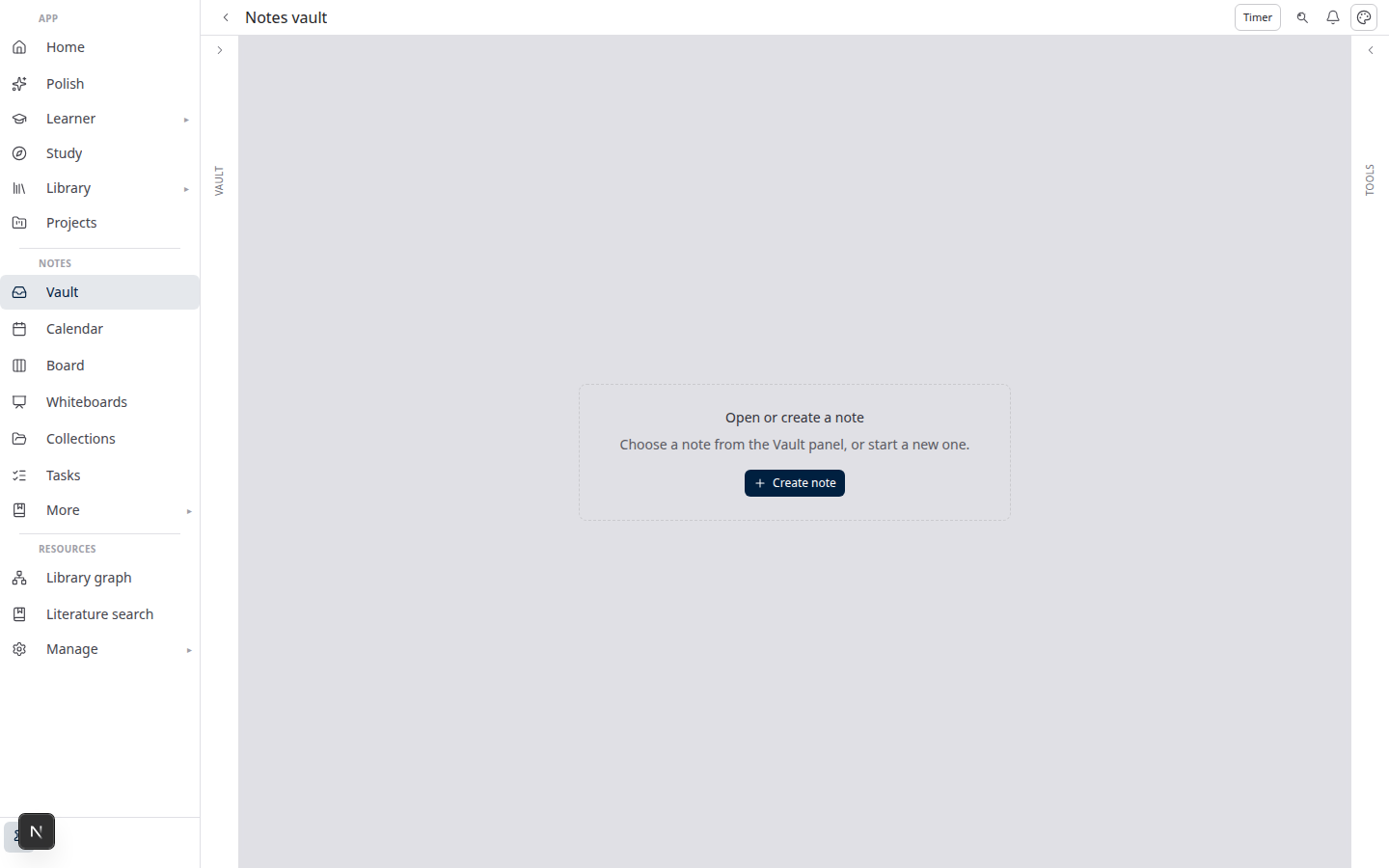
The visual layout may change with viewport, but the model stays the same: the note is the source of truth, the Links pane explains relationships, and the Graph helps you inspect the surrounding context.
Create a wikilink
- Open a note in the vault editor (
/notes). - Type
[[— autocomplete suggests existing note titles. - Select a note or finish the slug, then close with
]].
Example: [[meeting-notes]]
Use the note title shown in autocomplete so the link resolves to the intended note. If two notes have similar names, add a clarifying title or folder context before linking. A link is saved with the note; it is not created by merely typing plain text.
Typed relationships (optional)
[[other-note|rel:related]] adds a relationship label shown in the Links pane.
See links
- Links pane (right column): outgoing links and backlinks.
- Graph pane: one-hop neighborhood around the current note.
Use outgoing links to check what a note depends on, backlinks to discover why a note matters, and Graph to find clusters or isolated ideas. Open a link from the pane when you need to preserve your scroll position in the current note.
Broken links
Missing targets appear distinct in preview; you can create the target note from the link.
A maintenance routine
When a note becomes important, give it one clear title, link to it from the notes that use it, and add a backlink or typed relationship only when the relationship carries meaning. Once a week, open the graph around a current project and repair broken or one-way links. Use block references for precise claims instead of duplicating the same paragraph across notes.
Maintain a useful graph
Review broken links after importing or renaming notes. Repair the target rather than replacing every link with a copied paragraph; a working link keeps the source of truth in one place. Use a block reference when only one definition or claim is relevant.
Continue with Block references, Notes vault panes, or the Notes workflows.
Browse more in Notes & Library or return to all tutorials.