Lattuce tutorial · Notes & Library
Notes workflows
Choose practical Notes workflows for capture, linked research, journals, tasks, boards, calendars, and offline work.
Notes is the durable workspace for research notes, daily records, tasks, clips, and visual thinking. It is a Writer domain, so notes can connect to papers and sources without becoming part of a DOCX export automatically.
Use the workflow that matches the shape of the information: Vault for durable text, Calendar for time, Tasks for commitments, Board for status, and Whiteboards for spatial relationships.
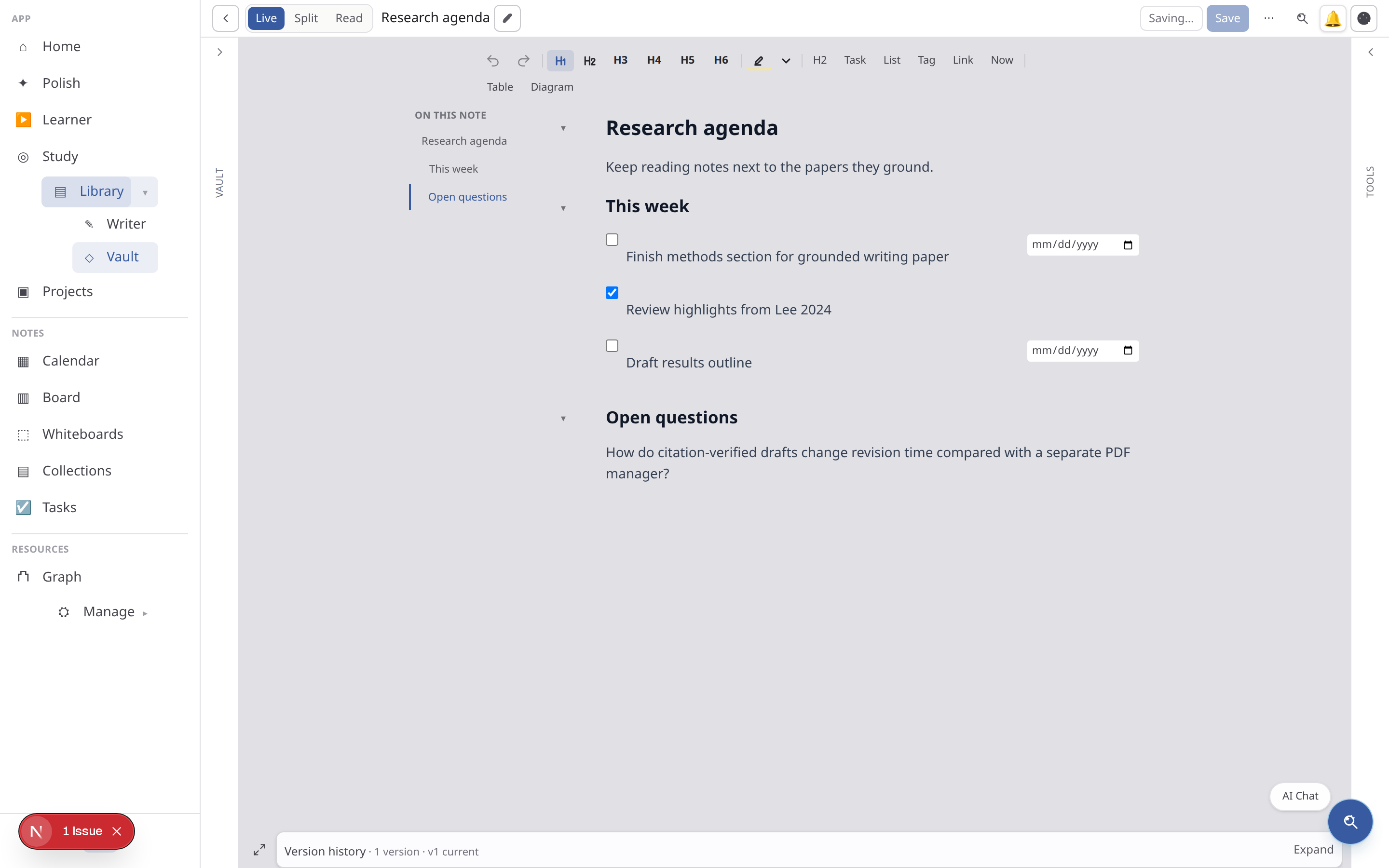
Capture and organize
Use the Vault to create or open a note. The catalog can be viewed as a table, list, board, or timeline depending on the information you need. Filter by tags, folders, paper, note kind, or saved view; use search and queries for recurring questions.
Useful capture paths include:
- Today and Journal for daily notes;
- quick capture from the vault or desktop/mobile shell;
- Attachments for images and files;
- Source clips for passages and PDF highlights; and
- note Projects/Collections for ordered groups of notes used in a draft.
Capture once, organize later
Create a note with a searchable title and capture the raw idea before choosing a folder or tag. Add a source link, paper reference, or kind property when you know it. At the end of a session, move only durable material into a project note and turn open questions into tasks or calendar checkpoints.
Link and explore
Type [[Note title]] to create a wikilink. The Links tool shows outgoing links and backlinks, while Graph shows the local or cross-paper relationship map. Block references can point to a specific block when a whole-note link is too broad.
Start links from concepts, claims, or people that will recur. A link graph becomes useful when the label describes the relationship; use typed relationships for distinctions such as related, supports, or contradicts. See Wikilinks and Block references.
Write and review
The vault uses resizable Vault · Editor · Tools panes on wide screens and tabs on phones. Tools include Links, Properties, Outline, Highlights, and Graph. Choose a focused editor width when drafting, or widen Tools when you are organizing links and properties.
Markdown notes, canvas notes, source clips, and authored highlights can live together. Editing a note does not create a paper draft version and does not enter DOCX export unless you paste or promote the content into a paper section.
Boards and whiteboards
Use Whiteboards for spatial work: text cards, note cards, source clips, sections, links, and images. Use Boards for kanban-style task and note organization. The canvas supports pan, zoom, fit view, auto-organise, and read-only sharing. A course or research mission can send useful answers to a board as cards.
Calendar and tasks
Calendar shows note events, deadlines, and reminders. Tasks collects checklist and task items parsed from notes. Use the project or board view when you need ownership and workflow columns; use Calendar when timing is the main question. Calendar feeds and reminder files can be subscribed to from the Notes calendar settings.
Use a task when the item can be completed, a calendar event when it occupies time, and a project milestone when it represents a larger outcome. The Notes calendar guide explains linked task deadlines and read-only ICS subscriptions.
Import, export, and sync
The catalog and organize panels provide vault import/export options. The standalone Notes shell keeps local data in IndexedDB and synchronizes deltas when connected. Desktop and mobile clients use the same shell with account-aware storage and conflict handling. If the connection is unavailable, continue locally and let the queue flush after reconnecting; review a conflict before accepting an overwrite.
Before a large import, export a backup and test one representative note. After sync resumes, compare the changed-note count and inspect conflicts rather than assuming a last-write-wins merge preserved every edit.
Recipes and shared household notes
Recipe notes use structured fields for servings scaling and locale-aware content. Household boards and shared notes are collaborative spaces; keep private research or credentials out of a shared note. A shared read-only link is appropriate for publishing a finished board, not for granting edit access.
Notes versus papers
Use Notes for exploration, meetings, clips, tasks, and connections. Use a paper section for text that should participate in manuscript review, citations, formatting, and export. Promote only the material that is ready to become authored prose.
Related: Notes vault panes · Notes canvas · Notes calendar · Wikilinks · Integrations and sync
Browse more in Notes & Library or return to all tutorials.