Lattuce tutorial · Study & Learner
Import content into Learner
Import articles, EPUBs, PDFs, and public-domain books into Lattuce Learner for language practice.
Learner works best when one import has one clear purpose: reading in a target language, collecting vocabulary, or practising a short passage. Choose the smallest source that lets you start reading today; you can add longer books after the reader and language settings are working.
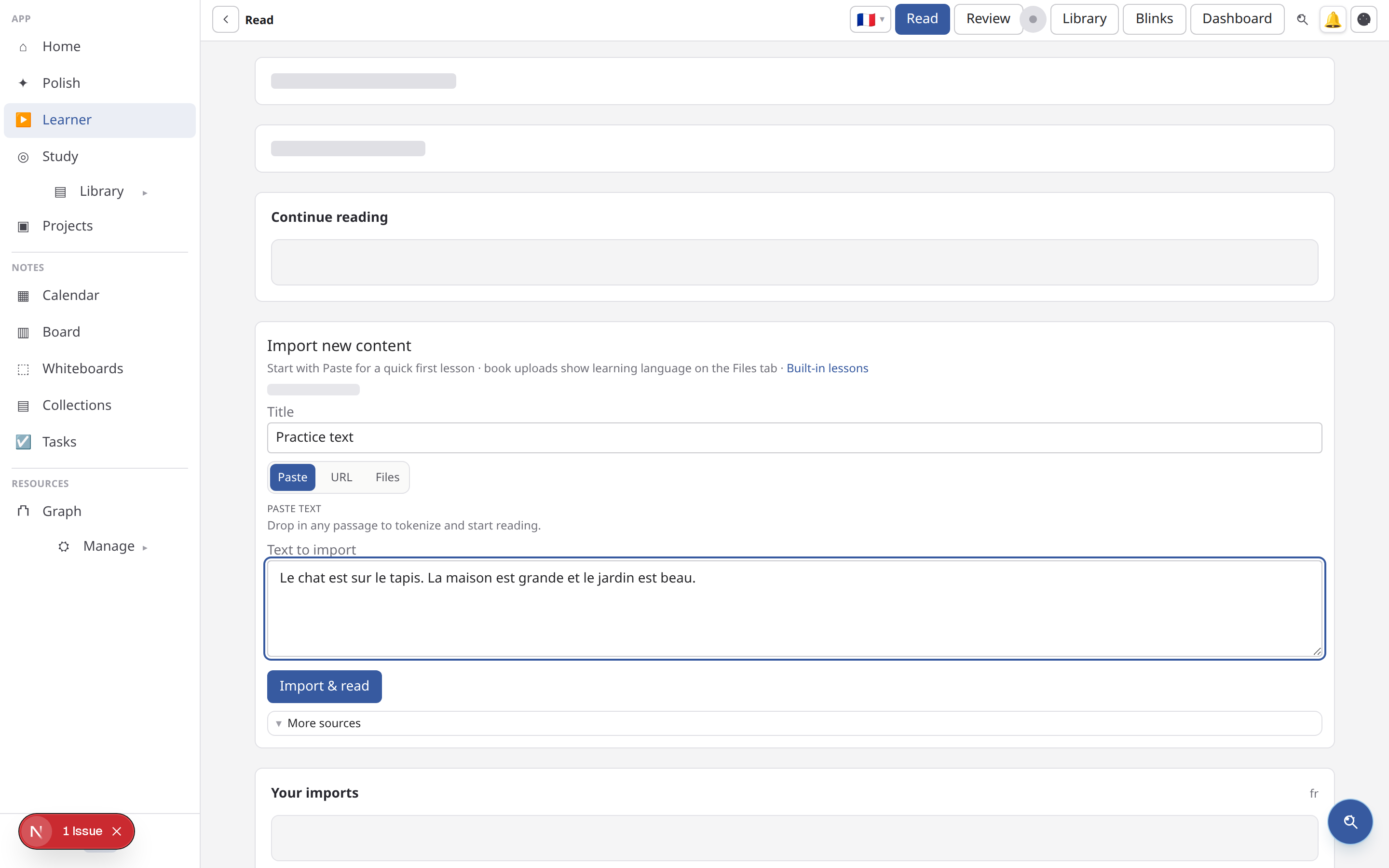
Article or blog URL
Paste a web page URL — Learner scrapes readable article text (HTML pages, not binary files).
Use Import → URL in Learner or ask Help to propose an import (confirm before it runs).
Before importing, check that the page is publicly readable, has a stable URL, and is primarily an article rather than a login wall or a download. After import, verify the detected language and title before saving words. If the page contains several unrelated stories, import each story separately so review history stays meaningful.
EPUB and PDF books
Upload an EPUB or PDF in Learner (Import → Files or Library → Books → Upload book).
- Choose the book language in the upload form. Foreign languages enable vocabulary study and spaced repetition.
- English is supported for reading only — the book opens in plain reading mode without vocabulary study. Paste, URL, and YouTube study imports still reject English as a learn target.
There is no URL import for EPUB/PDF binaries. Use Help web search to find download links, save the file, then upload it in Learner.
Project Gutenberg
Public-domain books are available in two ways:
- Read online — Import → More sources → Gutenberg or
/learn/gutenberg/{ebook_id}. Text is fetched on demand; reading position is saved for resume without adding the book to your shelf. - Add to shelf — Library → Books → Gutenberg (or the same Gutenberg panel in Learner import). Saves the book to your uploads like an EPUB/PDF import. English Gutenberg books also open in reading-only mode.
Other import paths
- Paste text — direct import (foreign languages only)
- YouTube — when yt-dlp is configured on the server (foreign languages only)
- Subtitles — upload or fetch subtitle files for cloze practice
Verify an import
- Open the new item from Library and confirm the title and detected language.
- Read the first paragraph to check that headings and sentence boundaries survived extraction.
- Select one known word and save it; this confirms the vocabulary action is available for the target language.
- Return to the Learner home and confirm the item appears in Continue reading.
Common import problems
- A URL that needs a login, blocks automated readers, or serves JavaScript-only content may produce little or no text; paste the passage or upload an EPUB/PDF instead.
- A PDF with scanned pages needs a text layer for reliable reading and vocabulary selection.
- English content is reading-only when English is the learner’s native language; choose a foreign-language target when you need SRS cards.
- YouTube imports depend on server-side transcript tooling. If captions are unavailable, use the video’s subtitle file or paste a transcript.
Spaced repetition
After importing foreign-language content, open it in the reader and add vocabulary or cloze cards for review. English shelf books skip vocabulary study and open in reading mode when your native language is English.
Continue with The Learner library to organise material or Study in Learner to build a review habit.
Browse more in Study & Learner or return to all tutorials.