Lattuce tutorial · Study & Learner
Study and Revise — grounded learning
Turn sources into a grounded Study course with a syllabus, tutor chat, visual lessons, and exam review.
Lattuce does not have a product named AI Tutor (unlike Heptabase). For exam prep and grounded Q&A over your sources, use Study or Revise.
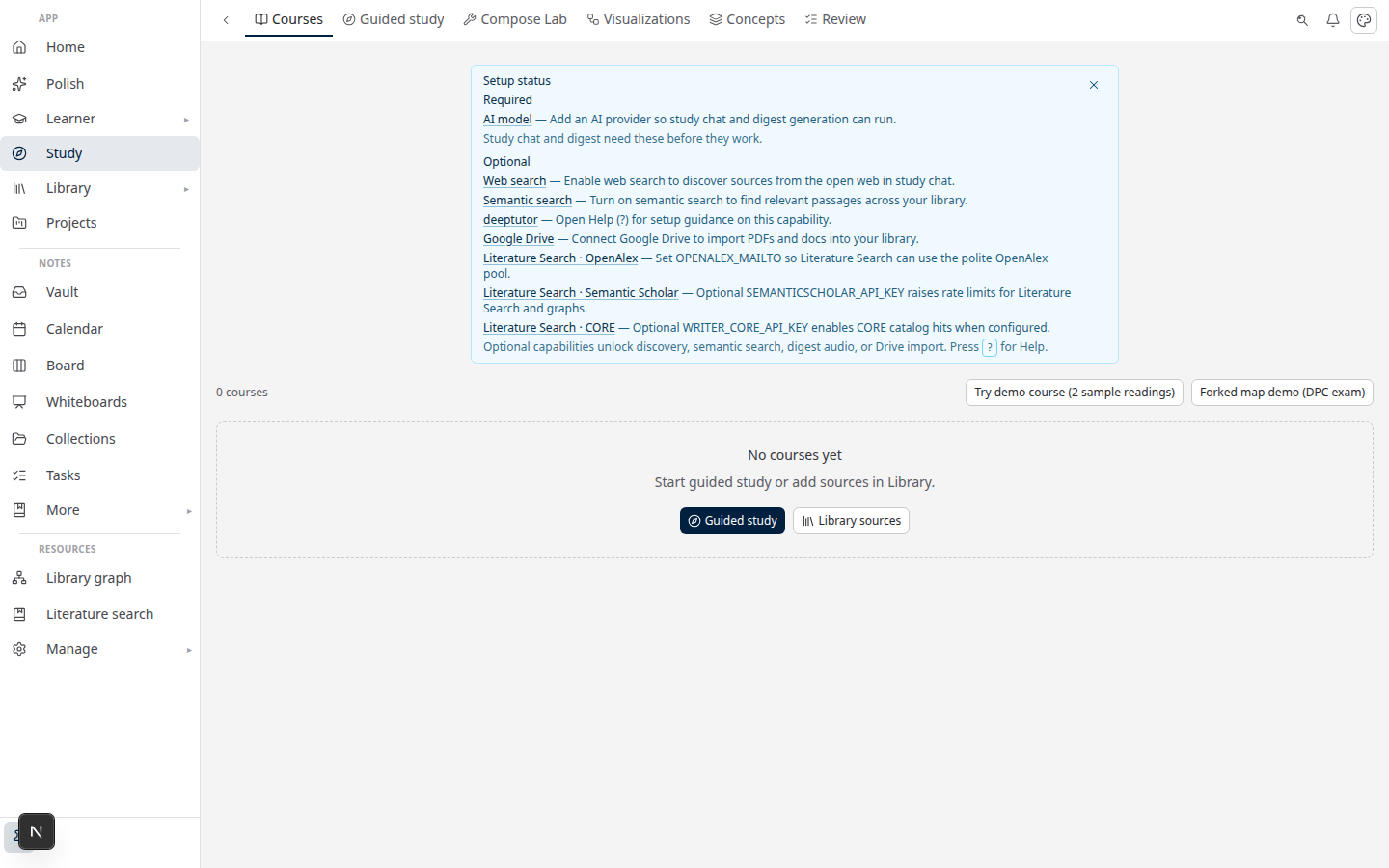
The reliable sequence is goal → course map → ready sources → grounded lesson → retrieval practice. Planning can start before sources are ready, but only the sourced stages should be treated as evidence-based learning.
Where to go
| Goal | Where | Route |
|---|---|---|
| Start from a learning goal | Study → Guided study | /study/start |
| Study a course (library collection) | Study → Courses | /study |
| Study sources for one paper | Paper workspace → Revise | /papers/{slug}/study |
| Ask about one source | Library or paper source viewer → Ask | Center column (Source / Ask tabs when narrow) |
| Language learning (words, SRS) | Learner | /learn — not a general subject tutor |
Prerequisites
- Upload sources in Library or a paper’s Sources pane (PDF, DOCX, URL).
- Wait until status is ready (text extracted and searchable).
- For Study: create a collection in Library and add materials, then open the course from
/study. - For Revise: attach ready sources to the paper and open the Revise tab.
- An LLM API key must be configured on the server for chat, exam questions, and study books.
You can open Study with an empty course list — but grounded chat needs ready sources in scope. For goal-first setup, use Guided study (below) to create a course and module roadmap before materials are ready.
Guided study (/study/start)
Study → Guided study (or Start guided study on an empty hub):
- Enter a learning goal and pick a goal type (understand, exam, source, or paper). On start, Lattuce may suggest goals from existing course whiteboards (Goal Discovery).
- Lattuce creates a course (library collection) and an LLM-generated module roadmap, materialized as a course map on the course whiteboard (module boards + concept cards).
- Add materials in Materials when you have them — or attach from the chat composer. Open a module to scope chat and prefill a starter question.
- Planning mode — before sources are ready, chat uses your goal and roadmap (no citations). A banner appears in the composer.
- Lesson focus — the lesson bar shows parts 0/N with Continue; complete parts as you go. Returning sessions show a short welcome-back resume.
- Board ↔ chat — drag a chat message onto the course or module board, or use Continue in chat from a focused board card. Source figures may appear as cards on the active module board.
Roadmaps also appear under Guided roadmap in the course tools pane. Regenerating a syllabus can show a diff — Accept merges the new modules, or Keep current.
Forked course maps: when a goal benefits from parallel tracks (for example foundations vs modeling before a capstone), roadmap generation may assign track labels, prerequisite links, and short course map teasers per module. The course map then lays out columns by track instead of a single vertical spine; edges labeled requires or optional show join paths. Guided roadmap lists track badges, prerequisites, and lets you edit each module’s map teaser. Module boards still hold full explanations and diagrams — the course map stays orientation-only (one figure thumb per module when materials are ready, plus a diagram chip that opens the module board’s study_viz when one exists).
Slide decks: use Align to slide decks (one module per deck) or Split deck into sections when chapter headings were detected. Appendix slides are excluded from ask and exam prep when study_scope is set at ingest — re-ingest older decks from Materials if the scope banner appears. Drag materials in the course pane to set lecture order when filenames are ambiguous, or choose Sort slide decks by filename from the Materials upload menu when several decks need lecture-number ordering.
Prepare course: when slide decks and past papers are ready, open Tools → Prepare course to extract agendas (suitable items seed the module roadmap), draft key concepts, prefill the board, propose concept visualizations and YouTube explainers (review gate), and generate concept-anchored exam questions — each step has a review gate before changes apply. The Materials banner shows an outline quality chip after extract (Agenda, Section, Deck, or Heuristic) so you can judge how modules were proposed.
Exam topic outline: on exam courses, Tools → Guided roadmap → Paste exam outline turns a markdown ## topic list (or numbered list) into the course roadmap. Preview the modules, then Accept to update the roadmap (progress on matching topics is kept). After Accept, grounded topic visualizations are auto-added to module boards when course materials are ready (others stay proposed for review). This updates exam prep structure — it does not add free-form board cards.
Past papers on the roadmap: when past-paper questions are extracted and curated, use Organize past papers to roadmap under Guided roadmap to map each curated question onto syllabus modules. Classification runs keyword matching first; when the server has an LLM configured, low-confidence or unmapped items get a second pass with the model. Only mappings at ≥65% confidence are saved to a roadmap topic — weaker matches stay in Unassigned past papers (draft or curated) for manual remap. Mapped modules show a past-paper Q count (curated items only); open Past papers on a module to drill those items inline. Re-extracting a paper auto-maps newly extracted questions that are not already assigned to a module (including draft items — badges appear after you curate them). Organize past papers only considers curated items. To fix a wrong assignment, use the Roadmap topic dropdown on an item in Unassigned past papers, Chat drafts → Exam Q&A, or while drilling Past papers on a module.
Visualize concepts: during study chat, the tutor can propose grounded concept maps, process diagrams, or charts (propose_study_viz) and YouTube explainers (propose_concept_youtube) for your approval. Accepted visuals land on the module board as study_viz and youtube cards. Select a visual card on the board to inspect it in the reader split or in Tools → Review → Visual.
Study workspace (/study/courses/...)
Course sessions default to a focused Tutor chrome (collapsed Materials/Tools; All study / Full workspace to expand). On large screens:
- Materials — sources in the course; readiness chips.
- Center — Chat and/or Board (editable course map; drill into a module board, then ← Course map).
- Tools — study book, concepts, progress, exam practice, review cards, guided roadmap. Exam courses default to the Exam tab.
Exam practice: open a course with ?wizard=1 or use Start practice now / Build exam practice in the Exam tab to generate questions and a study book. Exam courses also show Today's exam session (review cards → needs practice → practice set).
Review cards: review due flashcards inline in the course Exam tab, or from Study → Review on the hub.
Practice before prepare: create a practice set as soon as materials are ready. Improve course map (Plan tab) is optional for agendas, concepts, and board quality.
Timed mock: under Exam → Timed mock, run a client-only timed practice (duration + optional source filter). Results stay in the browser session; progress ratings still update exam coverage. Server-side mock attempt history is a follow-up.
Revise workspace (/papers/.../study)
Same pattern scoped to one paper:
- Sources — choose which attached sources to include.
- Chat — grounded Q&A with citation preview.
- Studio — pin answers, quick notes, study book, SRS.
Starter prompts include “What should I focus on for the exam?” and “Find tensions between sources.”
Pin and save answers
- Pin useful chat answers in Revise Studio for later review.
- Save session to the notes vault as a study capture.
- Send to whiteboard (course study chat) to materialize Q&A cards on a Notes canvas.
- Study book and flashcards feed Review (
/study/review).
Notes whiteboard
Notes → Whiteboards (/notes/whiteboards) is a spatial canvas for arranging cards and clips. Course study chat can Send to whiteboard to export session turns as cards. Research missions can also materialize outputs onto a mission board note.
Compared to Heptabase AI Tutor
| Heptabase | Lattuce equivalent |
|---|---|
| AI Tutor from a learning goal | Guided study (/study/start) + course Tutor chrome; grounded Q&A still needs ready sources |
| Goal Discovery from boards | Suggested goals on /study/start from existing course whiteboards |
| Syllabus / lesson edits with accept | Regenerate syllabus → diff → Accept / Keep current |
| Paced lesson parts on the board | Lesson bar (0/N, Continue) + module pacing; board stays orientation (answers stay source-cited) |
| Editable course whiteboard + sub-boards | Editable course map + per-module boards; concepts and lesson figures on the module board |
| Drag chat / artifacts onto the board | Wide Chat+Board split — drag messages to the course or active module board |
| Welcome-back continuity | Welcome-back banner + shared continue-lesson resume |
| Attach sources in the tutor composer | Attach from library / upload on the course chat composer |
| Premium / deeper credit tiers | No billing tiers — optional Deeper answers in course chat options (longer walkthrough; still source-cited). Default tutor answers teach (define → mechanism → pitfall → check question), not extractive summaries. |
Compared to NotebookLM
| NotebookLM | Lattuce equivalent |
|---|---|
| Audio overview | Source digest — audio script artifact (brief/deep formats; TTS when operator configures voices) |
| Quiz / study guide | Digest quiz and study guide artifacts in Study studio |
| Data table from sources | Digest table / spreadsheet artifacts + library catalog |
| Mindmap + branch chat | Digest mindmap (graph view + branch events) + scoped Study chat per course |
| Flashcards | Digest flashcards + course review queue |
| Google Drive sources | Library Google Drive import (Docs, Slides, Sheets/CSV when enabled) |
| YouTube / web / paste sources | Library import: YouTube URL, web page URL, and paste notes |
| Share notebook | Household digest share link on a course collection (read-only artifacts) |
| Zero-setup Google upload | Self-hosted library ingest — operator runs Writer + Postgres |
A repeatable study session
- Open the current module and read its goal before asking a question.
- Ask one question that names the concept, source, or comparison you need.
- Inspect the returned references and open the cited passage when an answer affects an exam decision.
- Save a concise explanation or send it to the board only after checking it against the source.
- Finish with a practice question or review card, then leave the next module action visible.
If the course map is too broad, edit or regenerate the roadmap and keep the version that matches the source structure. If chat is not grounded, stop and fix scope or extraction first; adding more prompts will not repair missing evidence.
Related: The Study course workspace · Study vs Learner · Library catalog
Browse more in Study & Learner or return to all tutorials.