Lattuce tutorial · Study & Learner
The Study course workspace
Navigate a Lattuce Study course workspace, add materials, ask grounded questions, practice, and review progress.
Study is for grounded learning over course material, exam preparation, and source-based questions. It is distinct from Learner’s language-reading loop and from Writer’s manuscript editor.
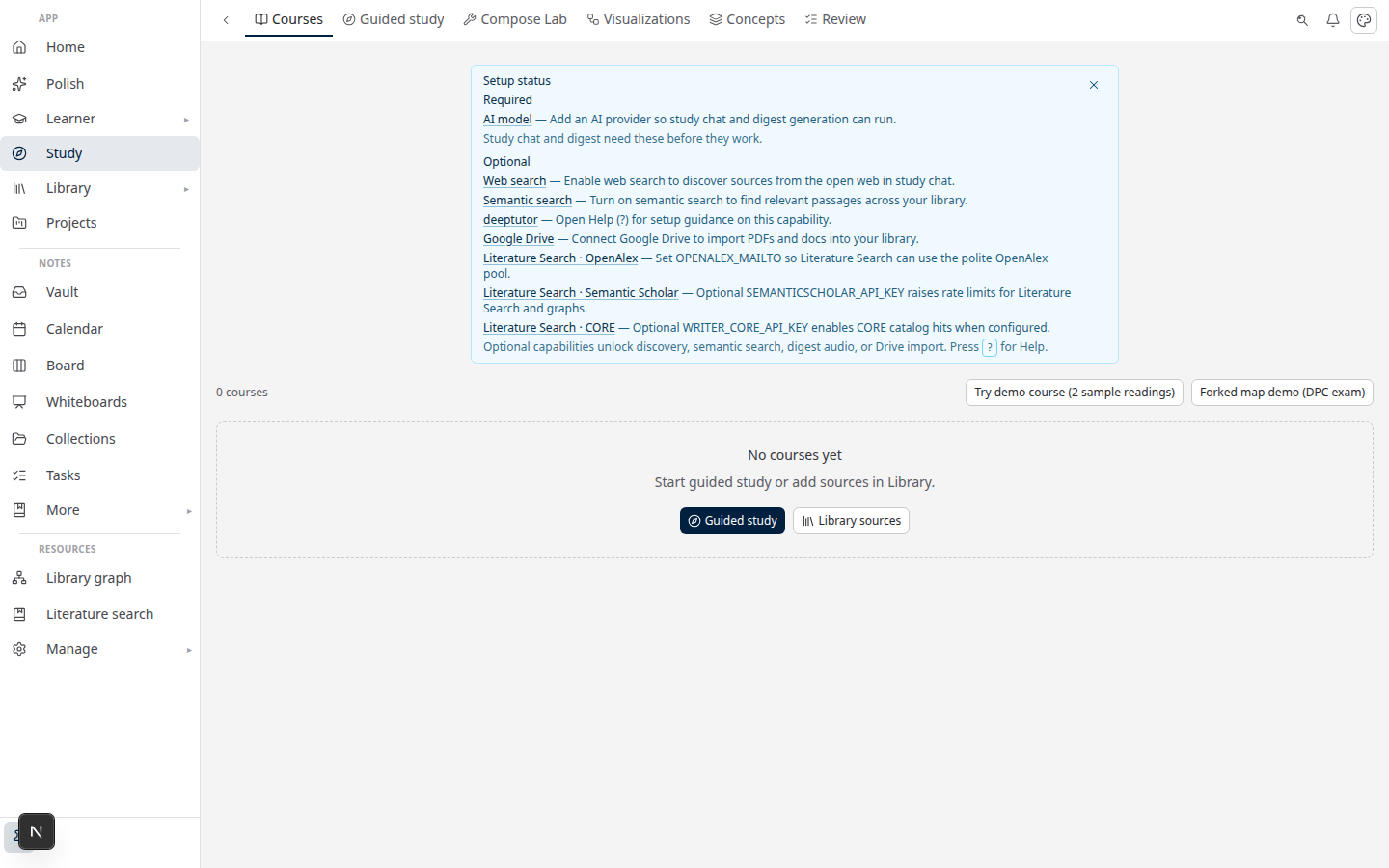
Use the workspace in three passes: prepare the source set, learn in a module, then practise retrieval. This keeps planning, source-grounded answers, and exam review visible without pretending that an unconfigured or empty course has citations.
Start with a course or a goal
Open Study (/study) to open a course, or choose Guided study (/study/start) when you have a learning goal but not yet a course structure. Guided study can propose a course, module roadmap, and course map. Review the proposal before accepting it, then add the materials that should ground the course.
Add materials
Add ready sources from Library or upload supported course material from the course workspace. PDFs, DOCX files, slide decks, pasted notes, web pages, and supported media can serve different study paths. Keep the course scope intentional: answers and practice are only as reliable as the materials in scope.
When extraction finishes, look for a ready status before asking for citations or generating exam practice. If a slide deck has an ambiguous filename, drag materials into lecture order or use the sort option in the Materials menu.
Ask and learn
The focused Tutor view keeps the question-and-answer loop central. Expand All study or Full workspace when you need Materials and Tools beside chat. Choose a module to scope the conversation, ask a question, and inspect the source references returned with the answer.
Use the lesson bar’s Continue action to keep moving through a paced module. On a later visit, the welcome-back state can resume the current lesson. Drag a useful answer onto a course or module board, or continue in chat from a focused board card.
Practice and review
Use Exam to build practice questions, a study book, and a timed mock. Review cards are available in the course and at Study → Review. Practice ratings update coverage, while a client-only timed mock keeps its result in the current browser session.
Begin with a small practice set before generating a large one. Review wrong answers against the source passage, then return to the module board or study book to repair the explanation. A high coverage score is useful only when the answers are grounded and the ratings are honest.
Use Concepts and the course/module boards to keep a durable map of the subject. A board is an orientation and synthesis surface; the source reader and citations remain the authority for factual claims.
Visualize and share
During grounded study, Study can propose concept maps, process diagrams, charts, or explainers. Accept a proposal before it is placed on the module board, then review it from the board or Tools → Review → Visual.
Eligible course artifacts can be shared with a read-only link. A shared link does not grant editing access to the course or its sources.
Study, Revise, and Learner
| Need | Use |
|---|---|
| Course or exam prep over your materials | Study |
| Q&A over one paper’s attached sources | Revise in Writer |
| Foreign-language reading and word SRS | Learner |
If a response is not grounded, check the active module and source readiness first. Planning mode can use a goal and roadmap before sources exist, but it should not be treated as a cited lesson.
Related: Study and Revise · Study vs Learner · The Writer paper lifecycle
If the workspace looks empty
- No courses: choose Guided study or add a Library collection.
- No grounded answer: check that the active module has a ready source.
- No exam controls: confirm the course is an exam course or use the practice action from the Exam tab.
- No visual card: accept a proposal first; proposed visuals do not change the board until reviewed.
For the full goal-first path, continue with Study and Revise — grounded learning.
Browse more in Study & Learner or return to all tutorials.