Use Lattuce from Cursor and Claude — your research in your IDE
Connect Cursor or Claude to your lattuce.app account so your AI assistant can search notes, read your library, and help with your papers.
For in-app help, ask the product assistant about MCP, local sync, and IDE tools (help doc mcp-and-local-sync).
Many researchers already use Cursor or Claude beside their writing — fixing prose, outlining a chapter, or asking an assistant to search what they read last week. Lattuce at lattuce.app can plug into those tools so the assistant works on your real notes, PDFs, and papers — not a blank chat window.
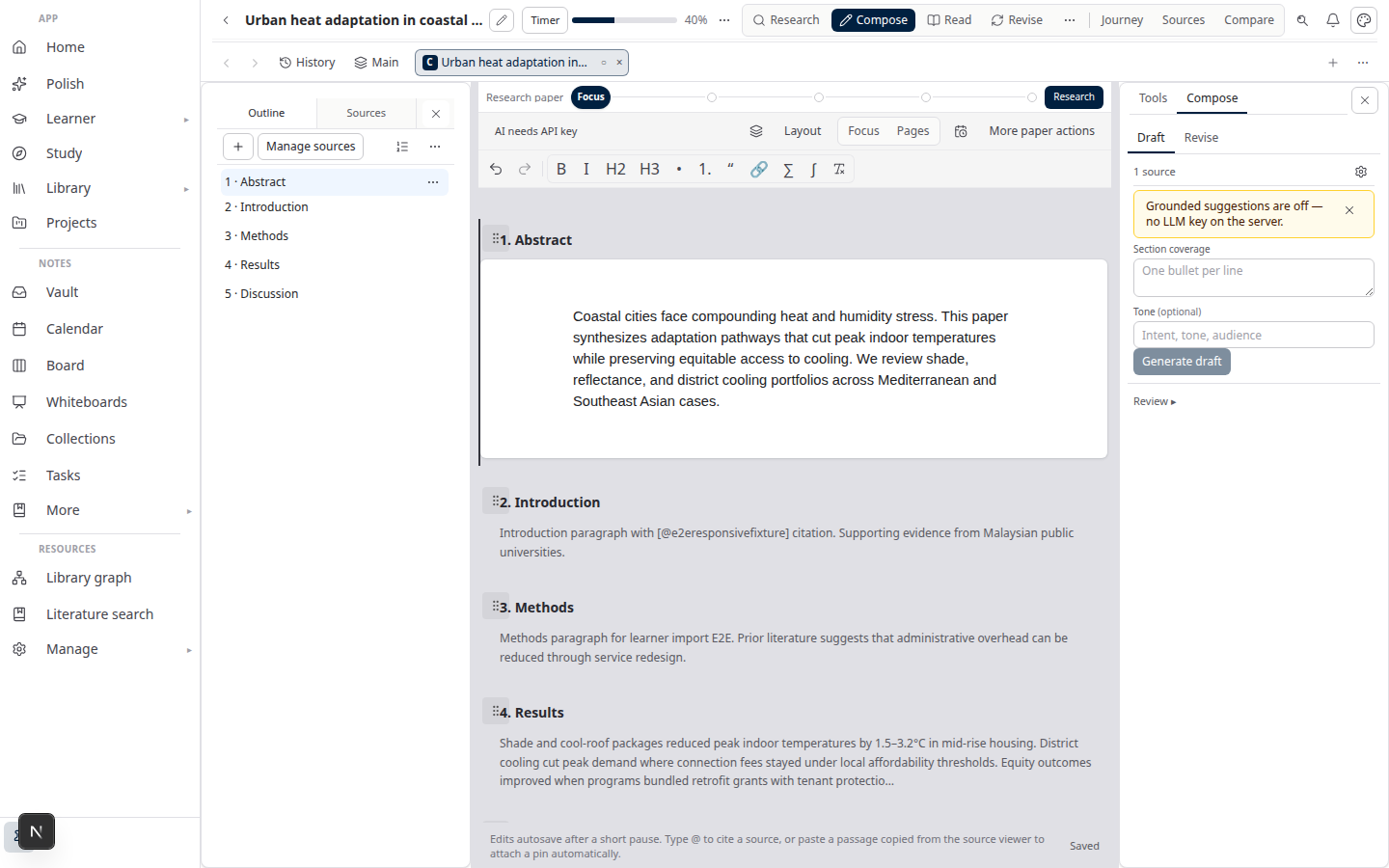
You stay signed in at lattuce.app in the browser. When you connect your IDE, the assistant can reach the same library and vault you already use there.
Who this is for
| You are… | Why connect Lattuce to your IDE |
|---|---|
| Thesis or article author | Ask questions across your notes and sources while you edit in Cursor |
| Graduate student | Get study help and draft ideas grounded in PDFs you uploaded |
| Anyone juggling browser + IDE | One account at lattuce.app — no copying paragraphs back and forth |
This is not how phone or desktop apps sync your notes offline. Sync keeps devices in step when you are away from the browser. The IDE connection is for online help from an AI assistant while you work in Cursor or Claude.
Before you start
| You need | What to do |
|---|---|
| A Lattuce account | Sign in at lattuce.app |
| Cursor or Claude Desktop | A recent version that supports connected apps (MCP) |
| A connection key | Create one under Settings → Account → API access |
| Optional AI in Lattuce | Add your own provider keys in settings if you want compose or study AI — see BYOK on Lattuce |
Lattuce runs in the cloud at lattuce.app today. For what you can use now and what is coming on Windows and Android, see where you can use Lattuce.
How to connect (three steps)
- Sign in at lattuce.app.
- Open Settings → Account → API access and create a connection key. Copy it somewhere safe — like a password, not something you paste into public chats.
- In Cursor or Claude, add Lattuce as a connected app. Use the official cloud address lattuce.app and paste your connection key when the app asks.
Cursor and Claude change their settings screens from time to time. If the menus look different, open in-app help on MCP, local sync, and IDE tools (/help/mcp-and-local-sync) — step-by-step setup lives there.
When it works, you should see Lattuce listed as connected and be able to ask the assistant about your vault or library from the IDE.
What you can do once connected
The assistant can help with the same kinds of work you do in the browser — in plain language:
| In Lattuce | From Cursor or Claude |
|---|---|
| Search and open notes | “Find my note about methodology” |
| Read your PDF library | “What do my sources say about sample size?” |
| Work on a paper | “List my manuscripts” or “Help draft the methods section” |
| Study over your reading | “Summarize this collection” or “Explain this concept from my course” |
| Ask across your workspace | “What did I write about ethics across notes and papers?” |
Nothing magical: the assistant still needs your permission before it changes notes or paper text. It should show you what it plans to do first. Read that preview before you approve — same care you would use in any AI tool.
Keep your connection key safe
- Treat the key like a password. Do not share it or post it in issues, screenshots, or group chats.
- IDE chat history can include what you asked. If a key might have leaked, revoke it in Settings → Account → API access and create a new one.
Browser or IDE — same account
You do not have to pick one. Many people write and read in the browser at lattuce.app and use Cursor or Claude when they want a coding-style editor or a second assistant window. Both see the same account when you are signed in.
How this fits with other tools
| Tool | Practical split |
|---|---|
| Notion | Keep team wikis and runbooks in Notion; connect Lattuce to your IDE for papers and research notes |
| Obsidian | Local notes on your laptop if you like; Lattuce + IDE for library, citations, and Word export at lattuce.app |
| NotebookLM | Quick digest in Google when you only need a chat; Lattuce when the work must become a cited paper |
More detail: Using Lattuce alongside Notion · Obsidian vs Lattuce · NotebookLM vs Lattuce.
Bottom line
If you already use Cursor or Claude, you can connect lattuce.app so your assistant works on your real research — notes, PDFs, and papers — without re-uploading everything into a generic chat. Sign in, create a connection key, add Lattuce in your IDE, and keep writing where you already work.
For detailed setup screens and troubleshooting, see in-app help on MCP, local sync, and IDE tools (/help/mcp-and-local-sync).