Notes catalog layouts in Lattuce — Table, Board, Timeline, and saved views for your vault
Table, Board, Timeline, and six other catalog layouts for your notes vault — saved views, filters, and how opening a note stays in context.
For in-app help, ask the product assistant about Notes workflows (help doc notes-workflows).
Your notes vault is more than a scrollable list. In Lattuce, the catalog — the list of notes in Library → Notes or the Notes sidebar — can switch between eight layout views: spreadsheet rows, kanban boards, timelines, calendars, and more.
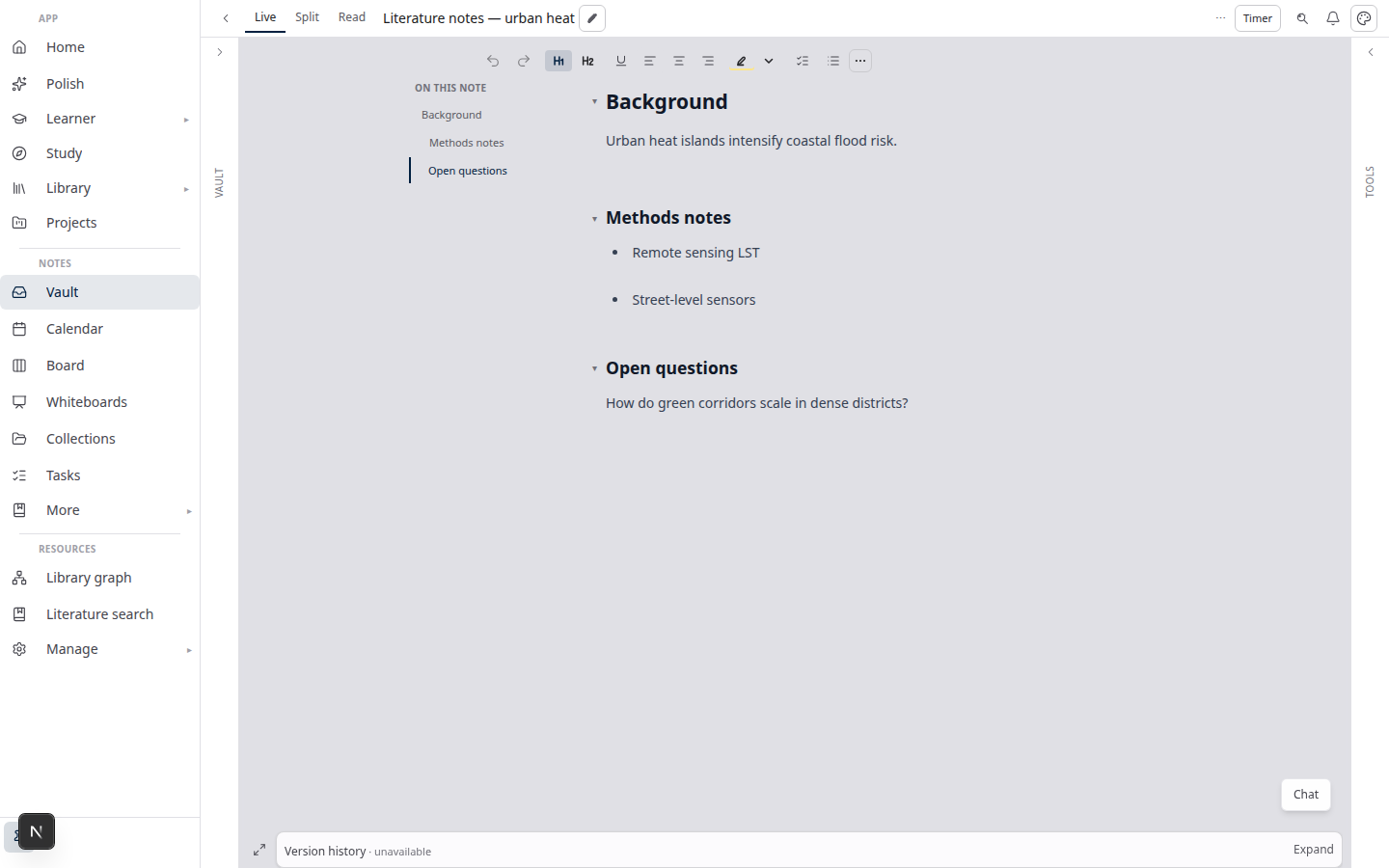
This guide is about how you browse and organize notes at the collection level. It is different from how you read or edit a single note (Live, Read, and Source + preview). For that, see Notes view layouts in Lattuce.
Where catalog layouts appear
You will see the same database view toolbar in two places:
| Surface | Path | Typical use |
|---|---|---|
| Library catalog | /library?kind=note | Full-width browsing, filters, and opening notes from the library grid |
| Notes vault sidebar | /notes | Writing workspace — switch layouts without leaving the note you are editing |
Both surfaces share saved view tabs, layout picker, filters, and sorts. Change a layout in one place and the view persists for that saved view.
When a library catalog view has a view= query (for example reading-queue), use Open in vault to jump to the same saved view inside Notes.
Saved views (tabs)
Above the catalog, view tabs let you keep multiple arrangements of the same notes:
- All notes — the default tab (cannot be deleted).
- + New view — duplicate your current filters, sorts, and layout under a new name.
- Double-click a tab — rename inline.
- Right-click or long-press a tab — rename, duplicate, or delete.
Each tab stores its own layout, filters, column visibility, and open behavior. Use tabs for stable workflows — “Reading queue” as a filtered table, “By status” as a board, “This month” as a calendar — without reconfiguring every session.
Eight layout views
Open the Layout control (gear icon) in the view toolbar to pick a layout. Every option is available for the notes vault except Relations (that layout is for linked records across source collections, not personal notes).
| Layout | What you see | Best for |
|---|---|---|
| Table | Spreadsheet-style rows and property columns | Scanning metadata, bulk review, comparing titles and dates |
| List | Compact title list | Fast navigation when you only need names |
| Board | Kanban columns grouped by a property | Status workflows (Backlog → To do → Doing → Done), tags, or note kind |
| Timeline | Horizontal timeline by date | Seeing when notes were updated or created along a time axis |
| Calendar | Month grid by date property | Lecture weeks, daily notes, or anything tied to a calendar day |
| Gallery | Card grid | Visual skim — titles, tags, and note kind at a glance |
| Chart | Bar chart of counts | Quick breakdowns — notes per kind, per tag, per paper |
| Relations | (not shown for notes) | Use in Sources collections to explore links between records |
Table and List options
For Table and List, the layout menu also offers:
- Show vertical lines — spreadsheet-style column dividers.
- Wrap all columns — multi-line cells instead of single-line truncation.
Board grouping
Board columns come from a group-by property. For notes, common choices include status, tags, note kind, paper, or folder. Notes without a value land in an Empty column so nothing disappears silently.
Timeline and Calendar dates
By default, Timeline and Calendar use the note’s Updated timestamp. You can point them at other date fields when your view configuration supports it — useful if you track a custom Date property on lecture notes.
Chart aggregation
Chart counts notes grouped by a property — by default note kind (lecture, daily, canvas, and so on). Change the view’s group rule to break down by tag, status, or another field.
Filters, sorts, and search
The view toolbar sits alongside layout controls:
- Filter — narrow by status, tags, note kind, paper, folder, and more.
- Advanced filter — combine conditions when a simple filter is not enough.
- Sort — order by title, created, or updated (ascending or descending).
- Search — full-text search across titles and bodies; view tabs stay visible while you search in the vault sidebar.
Filters and sorts are part of the saved view. Switching tabs can change layout and filters together — for example, a “Done this week” tab might be a Calendar with a status filter, while “In progress” stays a Board.
How notes open (peek vs full page)
In the layout menu, Open pages in controls what happens when you click a note from the catalog:
| Setting | Behavior |
|---|---|
| Side peek | Opens the note in a panel beside the catalog — keep scanning the list while you read or edit |
| Center peek | Opens a focused overlay — more room, catalog still one click away |
| Full page | Navigates to the note as the main surface — best when you are done browsing |
Table, Board, List, and Timeline default to Side peek so the catalog stays visible. Gallery, Calendar, and Chart default to Center peek where a wider preview helps.
Properties that power the layouts
Catalog layouts read note metadata, not just titles:
| Property | Used for |
|---|---|
| Title | Every layout |
| Status | Board columns (Backlog, To do, Doing, Done), filters, chart breakdowns |
| Tags | Board grouping, filters, gallery subtitles |
| Note kind | Lecture, daily, canvas, etc. — chart defaults and filters |
| Paper / folder | Grouping lecture notes by project or folder |
| Created / Updated | Sorting, timeline milestones, calendar cells, recency grouping |
Set status and tags from the note editor or the vault Properties panel. The catalog reacts on the next refresh.
Example workflows
- Weekly review — saved view tab with Timeline layout, sorted by Updated descending, filter to notes touched in the last seven days.
- Reading queue — Table with a status filter (To do + Doing), Side peek so you open the next note without losing the queue.
- Course prep — Board grouped by paper, one column per chapter or assignment.
- Semester calendar — Calendar on lecture notes that carry a Date property.
- Vault health check — Chart grouped by note kind to see whether daily notes or lectures dominate.
Tips
- Name your tabs after the job — “Inbox”, “Someday”, “GEOG101” — so layout + filter combos are obvious at a glance.
- Duplicate before experimenting — right-click a tab and duplicate, then try Board or Timeline without losing a working Table view.
- Library vs vault — configure in Library → Notes when you want space; keep the same view in the Notes sidebar while writing.
- Do not confuse the two “layouts” — catalog layouts (this guide) vs Live / Read / Split inside a note (companion guide).
Related reading
- Notes view layouts in Lattuce — Live, Read, Source + preview, and the sticky outline rail
- Query canvas in Lattuce — live boards from vault metadata
- Obsidian vs Lattuce — notes vault vs full research workspace
Bottom line
The notes catalog is a database view engine: eight layouts, saved view tabs, filters and sorts, and peek or full-page opening. Pick Table for metadata, Board for status, Timeline or Calendar for dates, Gallery for visual skim, and Chart for counts — then save the combination as a tab so your vault stays organized between sessions.