Version history in Lattuce — compare checkpoints, restore with confidence, and a three-tier workspace
Version history in Lattuce — compare note and paper checkpoints, preview older versions, and restore safely — inline, overlay, or workspace.
Long notes and paper sections change in small steps. You rewrite a paragraph, adjust note properties, or take a snapshot before a risky structural edit — and an hour later you need to know what changed and whether you can go back without losing the trail.
Lattuce now ships a shared version history experience across Notes and Writer (paper sections). It is built as a ladder: a quick inline peek, a focused compare overlay, and a wider workspace when you need diff, preview, and restore in one place.
Where version history lives
| Surface | What is versioned | How checkpoints are created |
|---|---|---|
| Notes vault | Note body, tags, and custom properties | Manual Save (hub chrome or shortcut) creates a checkpoint; autosave updates the live note without a new version |
| Paper sections | Section draft text | Each save creates a draft version; Take snapshot adds a labeled checkpoint you can find later |
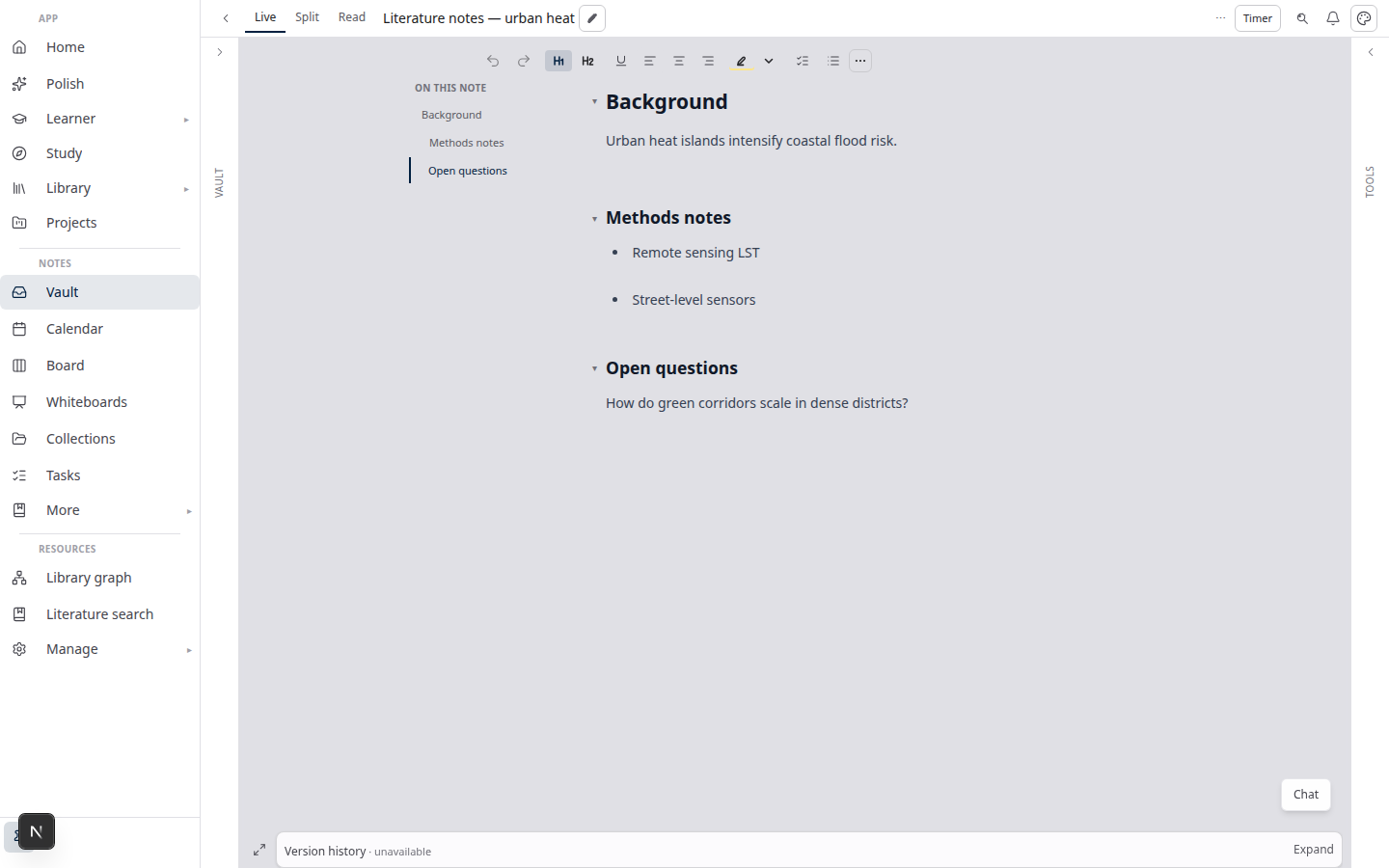
Open a note in Notes and expand the Version history bar at the bottom of the editor column. In Papers → Write, each section block includes a collapsible Version history panel under the editor.
Before you start: version history needs at least one checkpoint. On notes, use Save (not autosave alone); on sections, edit and save or use Take snapshot for a labeled milestone.
Three tiers — same engine, different shells
Version history uses one compare/restore engine with three presentation levels. You are never forced into a modal for a quick restore.
1. Inline (quick peek)
The default tier stays out of the way:
- Notes — sticky footer bar: version count, expand/collapse, and a maximize control.
- Sections — compact block under the section editor with expand/collapse and Take snapshot.
Select a version row to compare against the current (or base) version inline. Restore as new version opens a confirmation dialog — restore never silently overwrites history; it appends a new current version from the checkpoint you chose.
2. Focused overlay (read the diff)
Click the maximize control (or Version history in the section inspector) to open a large overlay — about 80% of the viewport on desktop, or a bottom sheet on phone layouts.
Focused mode is for reading a side-by-side diff with enough room to trust a restore. From here you can promote to workspace or close back to inline.
3. Workspace (long bodies and vA ↔ vB)
Open in workspace (or choose Version history (workspace) from the command palette) opens a right-hand panel (~45% viewport width on desktop) with three tabs:
| Tab | Purpose |
|---|---|
| Versions | Scroll the full list; load more on notes with long histories |
| Diff | Side-by-side compare with highlighted changes |
| Preview | Read-only rendered markdown (notes) or plain text (sections) for the selected version |
In workspace you can set any version as compare base (context menu or long-press) — useful when you want v3 against v7, not only against “current.”
Always workspace (checkbox in the overlay header) remembers your preference: the maximize button opens workspace directly next time.
Notes: checkpoints vs autosave
This distinction matters for lecture capture and daily notes:
- Autosave keeps your live note up to date on the server. It does not add a row to version history.
- Save (explicit checkpoint) creates a version you can compare and restore later.
If you only see “Current version only” in the footer, save once — you now have a baseline to diff against future checkpoints.
Version history also compares tags and custom properties, not just body text. Restoring an older version can bring back property values you changed in a later session (with the same confirm-before-restore flow).
Papers: snapshots and section drafts
Writer section history tracks draft versions as you edit. For deliberate milestones:
- Expand Version history on the section.
- Click Take snapshot and optionally add a label (for example
Before structural edit). - Continue writing — the snapshot stays in the list for compare and restore.
The section inspector links to version history when you need the focused overlay without scrolling the manuscript.
Command palette and dual-note layouts
On Notes, with a note open, open the command palette (Spotlight) and search Version history (workspace) to jump straight to the workspace tier.
On Write, the same command appears when a section is selected — it scrolls the matching section history into view and opens workspace.
When you use beside notes (note2= in the URL), the secondary note may hide the inline footer to save space. Use the overflow menu Version history on that pane; the overlay still opens and responds to palette commands.
Tips
- Before a big paste or refactor — save the note or take a section snapshot so you have a labeled rollback point.
- Properties and tags — on notes, select an older version and scan the diff before restoring; property-only changes show up in compare.
- Long note histories — use Load more versions inline, then open workspace for diff + preview on the pair you care about.
- Non-adjacent compare — in workspace, right-click (or long-press) a version → Set as compare base, then select another version to diff against that base.
- Prefer workspace every time — enable Always workspace once; maximize opens the tabbed panel directly.
Related reading
- Notes view layouts in Lattuce — Live, Read, and sticky outline while you edit
- Notes catalog layouts in Lattuce — browse the vault before you open a note
- Lattuce vs research apps — where Notes and Writer fit in your research stack
Bottom line
Version history in Lattuce is checkpoint-oriented: explicit saves and snapshots you can compare, preview, and restore — not an ever-growing autosave stream. Use the inline footer for a fast restore, the focused overlay to read a diff with confidence, and workspace when you need tabs, a custom compare base, and a rendered preview of an older note or section.